
Xbox 360 guide
Yes, Xenia runs supported Xbox 360 games.
Start with the official Xenia build, check the compatibility report for your exact title and isolate settings changes one at a time.
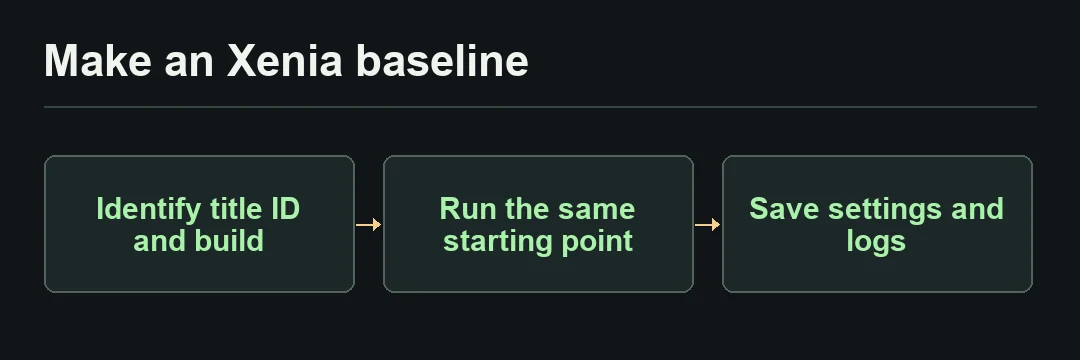
1. Identify the game and build
Check the title ID, edition and most recent test in the project’s compatibility reports. Reports distinguish a game that reaches menus, one that enters gameplay and one playable far enough to make progress. Note the reported build and graphics backend as well as the label.
2. Start with the project’s default settings
Read Xenia’s current Quickstart for supported CPUs, GPUs and graphics drivers. Get the Windows build through the project’s download page. Start with defaults and your own lawful local title data. Loading directly from a retail disc drive is outside the supported workflow.
3. Change one variable at a time
Keep the default configuration as a baseline. Test at default resolution first. If a manual per-title setting is documented, make that single change and return to the same point in the game. Save the build, graphics backend, log and reproduction steps. Compare Canary if a current compatibility report recommends it, and keep a separate copy of settings.
What about support for other Xbox generations?
An Xbox 360 build is the target for Xenia. For an original Xbox title, check xemu. Xbox One and Series releases involve different projects and have significantly fewer documented options.
Common questions
Can Xenia play every Xbox 360 game?
No. Compatibility varies with the title, release and build. Check recent reports and known blockers.
Which build should I use?
Start with the official project download. Consider Canary if a recent report documents a specific fix or workaround.
Can Xenia load a retail disc directly?
No. The Xenia Quickstart states that retail discs do not run directly from a disc drive.