
Blog ·
Can Xenia Play Xbox 360 Games on Windows? Yes, for Supported Titles.
Set up a repeatable Xenia baseline, interpret compatibility reports and diagnose problems without chasing random settings.
Xenia can run supported Xbox 360 games on Windows, with results that depend on the exact title, build and hardware. Start from Xenia’s Quickstart, check the official title report, and establish a reproducible baseline before changing settings. Xenia supports Xbox 360 titles, so use a different guide if your game originally shipped for another Xbox generation.
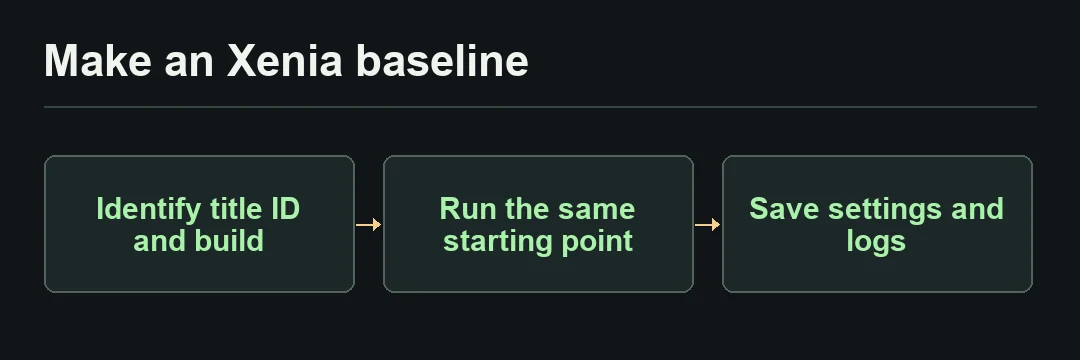
1. Identify your version of the game
The title that appears on the box can refer to multiple editions. A base game, regional release, compilation and downloadable version may have different identifiers and subsequently encounter different issues. Where the upstream reports give a title ID, use it along with the visible name. Look for the most recent report matching its own Xenia build, rather than relying entirely on a compatibility label added years earlier. A game can gain support after a code change or lose it temporarily through a regression.
Use three questions when reading the report. Can it reach the in-game part of the title? Does it do so with ordinary controls, sound and usable visuals? Are there save, progression or stability issues later in the game? Compatibility labels summarize these questions differently across projects. A label reporting some gameplay can coexist with a known blocker. Expand the remarks and compare dates. When a user posts a screenshot, inspect the hardware and build identification before copying settings.
The Xbox 360 guide links the official compatibility tracker. A game with an official Windows version can be compared separately. That version runs as a normal PC title and might offer different store, accessibility, controller or save behavior. Identify your intended version before assuming that a franchise name or box art settles which software you need.
2. Download from the project and check the requirements
Use xenia.jp’s download page and the linked upstream builds. Read the Quickstart for the operating-system, supported CPU and graphics prerequisites. The recommended backend and practical performance may vary with the driver and the title. A powerful GPU can still run into an unavailable feature or driver-specific issue. Read the current documentation before interpreting performance numbers from a different project.
Start with an unmodified build, a clean configuration and a game you already have appropriate rights to use. The official Quickstart explains the types of local inputs that Xenia can open. Xenia cannot run a retail Xbox 360 disc directly from the computer’s optical drive. Save a copy of the build link and its revision, especially when testing a changing release channel. Avoid assuming that an installer from an unrecognized host fixes a missing prerequisite.
If you use a controller, make sure Windows recognizes it before launching the game. Use the display resolution and frame pacing defaults while establishing basic behavior. Play a short, repeatable sequence, such as reaching the first controllable menu then starting a new game. Record the sequence that triggered any issue. If the title can save, verify that you can close and relaunch before beginning a long playthrough.
3. Record a good baseline before troubleshooting
Record the Xenia build, title ID, operating system and GPU driver. Keep the input method and the exact graphics backend in your notes. When recording behavior, describe a check such as reaching the first menu, moving through a specific scene and writing a save. When comparing speed, replay the same scene and distinguish short loading hitching from sustained low performance. Observations from different locations in a game can describe different workloads.
A useful reference test isolates a single problem. If the screen is black, check whether sound or input indicate that the game advanced to a known point. If you have menus but no gameplay, check the compatibility report for the required settings and revisions. If several supported titles immediately exit the same way, verify the emulator’s environment, support prerequisites and recent driver changes before searching for a per-game patch.
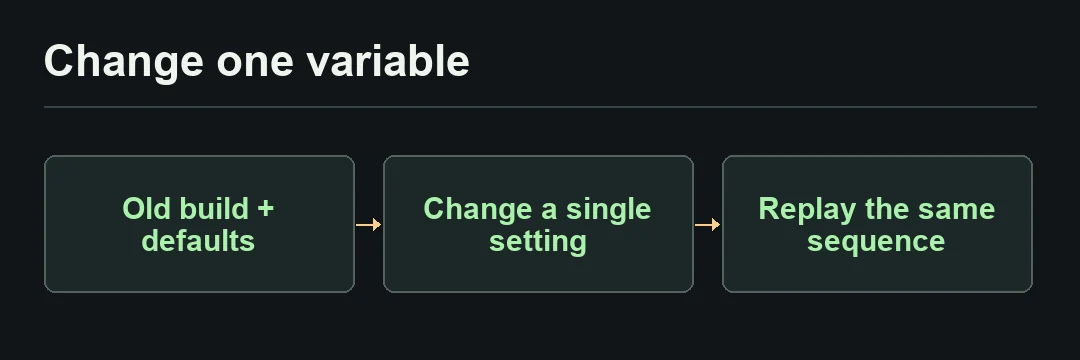
4. Make one reversible change at a time
If a title report names a setting, record its previous value, change only that setting and launch the same title section. It is easy to mistake a scene difference, an emulator cache or run-to-run variability for a fix. Keep a separate copy of the config and preserve the original default. A backup makes it possible to return to a working state when a setting introduces a new issue.
Canary is a separate development branch whose changes may address particular titles and workloads. Check its own documentation and the build linked by a useful report. Make the first comparison with default settings in both builds. Then introduce a title-specific patch only when the documented requirements and title IDs match. It is easier to tell whether the newer build changes a problem when both comparison runs start from equivalent settings.
For an in-game graphical error, capture a brief description of the observed result, such as missing haze in a particular area and whether movement changes it. For stability problems, preserve the relevant log and include the last action before a crash. For an input issue, record the controller model and whether it works earlier in the game. Include only the relevant diagnostic details in any public report and keep file paths, account identifiers and copyrighted content out of attachments.
Compare the same launch sequence after an update
If you change drivers or update the emulator, reopen a title you already tested before assuming a new issue belongs to the title. Keep the previously documented revision and settings for comparison when possible. Reproduce the same point from a backed-up save or a new game using the same actions. This allows you to report where behavior first changed and identify whether it repeats across more than one title. One stable baseline is more useful than several runs with unclear settings.
5. Know when to stop tuning
A title-specific issue can require code in the emulator, shader handling or driver behavior that ordinary settings cannot supply. If the upstream report describes a known persistent blocker, look for a newer revision with an explicit fix. Keep the current working setup around when a test changes the symptoms but introduces worse playability. Check that the new build can load existing progress before replacing a setup you depend on.
If you report a result, state whether the title boots, reaches interactive gameplay and resumes after saving. Post reproductions to the appropriate existing issue as directed by the project. This gives contributors more useful information than a score or a list of changed settings. If the version tested quietly differs from the one in the issue, report that first so maintainers can interpret the comparison.
The same method can help when you use xemu for the original Xbox. Each project has its own release and documentation. Neither project’s compatibility label covers Xbox One or Series titles. Those generations have different research paths described in the Xbox One guide and Series guide.
Common questions
Should I change the rendering resolution before my first run?
Keep the default on the first run. A record of the original visual and stability behavior makes it possible to compare a later adjustment on the same build and scene.
Why do two reports for the same game differ?
They may use different regions, editions, builds or video backends. Compare title IDs and reproduction steps before applying a setting described in another report.
Which facts belong in a compatibility report?
Record the title ID, the emulator build, the graphics backend and the failed action or screen. Include the driver if it is relevant and describe whether a previously working build behaves differently. Save or load behavior needs its own observation.