
Blog ·
Does GTA VI Run on Xbox Series S? Yes. Here Is What Rockstar Confirms.
What the launch materials say about Xbox Series S, the 30 FPS target, local gameplay, cloud settings and Remote Play.
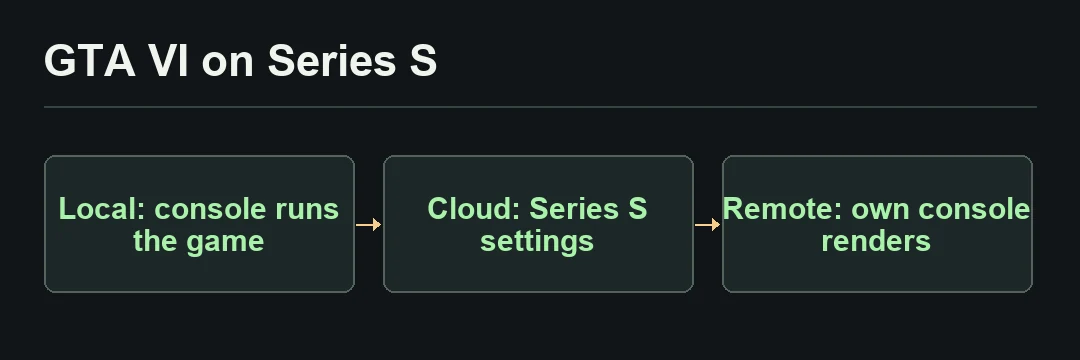
GTA VI can run locally on Xbox Series S. Rockstar lists Xbox Series X|S among the console launch platforms and describes a 30 FPS target for the current-generation versions. Series S graphics settings are also used by the title’s launch cloud stream on supported Xbox consoles.
Series S is part of the current Xbox release
When you see Xbox Series X|S on Rockstar’s announcements, the notation includes both Series models. Xbox One, Xbox One S and Xbox Series S are differently named devices. GTA VI’s native Xbox release supports the Series generation. Xbox Wire separately describes Xbox One as a supported cloud client for the title, subject to regional and account eligibility.
The exact edition and store account matter during setup. Rockstar’s platform and edition guidance distinguishes different editions, including code-in-box products and the requirements for redeeming them. Read the current storefront for your region and verify that the listing references Xbox Series X|S. Check which account holds the entitlement before assuming another family member or console can install it under the same terms. Cloud play can also apply its own conditions.
An ordinary Series S installation makes the console responsible for running the game. It processes input, simulates the scene and renders directly. If you have enough storage and a supported copy, you can start by checking the console’s current game updates and display settings. That baseline is useful when comparing against a cloud stream, whose network and decoding steps change the experience.
What the 30 FPS target tells you
Rockstar’s launch materials describe a 30-frames-per-second target for the console generation. A target identifies a design goal under the publisher’s console graphics settings. Assessing whether a specific scene holds that target would require measuring actual frame presentation by hardware model, build and conditions. A single screenshot can show visual detail but carries no information about how consistently the console produced frames.
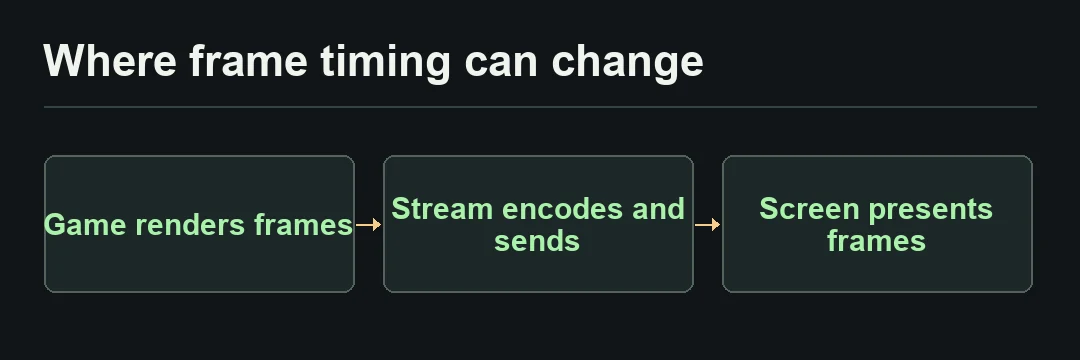
At a steady 30 FPS, a new game frame is expected roughly every 33 milliseconds. Slow or uneven frames can feel different even if a short average remains close to that number. In a busy scene, vegetation, traffic, lighting or simulation can interact in ways that change system load. When comparing reports, match the hardware, build and scene, and distinguish a brief hitch from a persistent change. Display refresh rate can also affect presentation when it does not line up evenly with the game’s frame sequence.
A TV showing a 4K signal still tells you only what the display receives. Games can render at a different internal resolution, make dynamic adjustments and upscale before output. UI text and rendered 3D scenes can follow different resolution paths. Before treating a number in a review as an official specification, check whether it describes internal rendering, video capture or the selected display output. The sources linked here establish platform coverage and the frame-rate target. Performance measurements for specific scenes require additional evidence.
What changes when you use Xbox Cloud Gaming
Rockstar says that its launch cloud offering uses Series S graphics settings. Xbox Wire’s title announcement names supported Xbox One and Xbox Series X|S consoles. The streaming device displays an encoded video stream and sends your input back. The game build executes on the service’s hardware. On an Xbox One, the stream can show a game from a newer platform because the game runs remotely.
Bandwidth, network delay and instability affect streaming. If the local game renders an image correctly but the stream loses detail in motion, the video encoder or network could explain the difference. If a button feels slower on the stream, it might still be accepted promptly by the game once the console or service receives it. Distance to the streaming system and local network congestion can contribute. Compare a similar scene on the same screen and keep the playback method visible in your notes.
Check eligibility for your device and market before paying for streaming time or a plan. The ability to stream an owned game does not imply inclusion of the game in a subscription library. General Xbox Cloud Gaming documentation may describe a broader device list, while a specific title has a narrower list at launch. Use the announcement for the specific game for those decisions.
Remote Play uses your own console
Rockstar confirms Remote Play support. In this setup, the source is your own supported game console, and the receiving device shows its stream. Start by confirming the title plays locally on that console, then check the official Remote Play software, account and supported input requirements. If a supported Windows client displays the stream, the game still runs on the console. That distinction matters if you are looking for a PC install or want to test desktop hardware.
Remote Play can help when your preferred screen and console are in different rooms. Local connection quality and console availability matter, as do display and controller settings. If an issue occurs, establish whether you can reproduce it on the console itself. A problem that only happens over the stream is easier to investigate when you can compare local playback under the same scene and settings.
Check the display path during troubleshooting
If playback is stable on the console’s own screen but appears blurry on another device, start with the stream and its connection before changing the game’s presentation settings. A television can apply its own sharpening, motion processing or scaling, so test with the same display mode when comparing outputs. Keep a short record of when a problem occurs, how the devices are connected and which playback method you selected. That record helps distinguish a repeatable rendering concern from a problem limited to a slower network or a screen whose settings changed.
How to compare Series S captures responsibly
When comparing footage, identify whether each clip comes from a local install, a cloud stream or Remote Play. A capture can go through its own encoding and resizing after the console produces an image. Use the uploader’s source notes and distinguish their measured numbers from a publisher’s target. Check whether a clip is from a gameplay session, a menu or a cutscene and whether it comes from the same game build as the other footage.
If you are deciding whether your specific Xbox can run the game, the official model names are enough to answer the native-platform question. If you are comparing screen results, ask which rendering mode and playback path produced them. For the Windows release status use the PC tracker, and for the public research projects use the Series X|S guide. A console frame-rate target from the publisher provides no native Windows requirements.
Common questions
Does Xbox Series X|S include Series S?
Yes. The console launch listing includes both current-generation Xbox Series machines. Xbox One S appears only in the discussion of older cloud clients under the title’s stated availability rules.
Is every scene guaranteed to sustain 30 FPS?
Rockstar describes a target. Consistency in any particular scene requires frame timing evidence from the same hardware, game build and playback setup.
Why can a cloud stream look different from my local Series S session?
The video stream has extra encoding, transport and display steps. A change in bandwidth or latency can affect the experience without any change to the original graphics settings. Compare the same scene and note which device actually executed the game.