
Blog ·
Is a GTA VI PC Installer Offer Genuine? No Verified Release Exists.
Check a claimed installer against official launch platforms, release identities and exact SHA-256 digests. Learn what to do if a suspect file was opened.
No verified GTA VI PC installer is available through Rockstar or the projects tracked here. Rockstar’s launch announcement covers consoles, while the known Xbox2Windows archive is a GPU diagnostic. If a page offers a working PC installer, verify the publisher and the exact upstream release before opening anything.
The console launch creates an easy misunderstanding
A page can accurately mention the console release date, show official screenshots and still make an unsupported claim about Windows. The source of the screenshots and the source of the file are separate. A legitimate publisher can release a trailer that many unrelated pages embed later. A stream can show actual gameplay on a PC monitor even when the game runs on a console. The existence of those visuals does not establish a binary for Windows.
Start at the publisher’s own platform listing. Check whether Windows is included, whether there is an official store link and whether it describes the exact edition in the offer. Treat a release-date rumor as a rumor. If a page says a PC build exists only in a private checkout, through a “pre-release key” or after paying an anonymous seller, the claim still needs independent confirmation. That confirmation should come from the publisher or the original project, as applicable.
Purported leaked retail packages introduce separate rights and authenticity questions. A large archive, the correct game logo or real-looking folders do not demonstrate that the file is legitimate. This site does not host or link to those files. If you want to follow project progress, public releases and maintainers’ writeups provide a way to do it without sourcing retail game data from strangers.
Official repository, release tag and exact asset
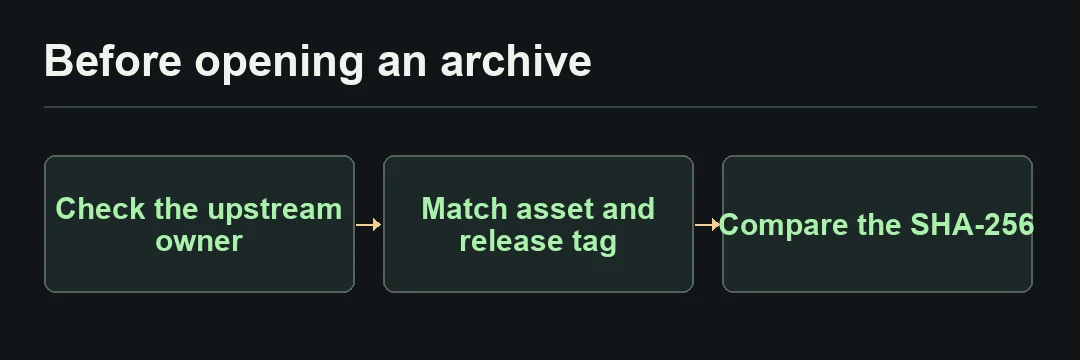
Start from a repository link you can trace to the project maintainer. Look at the exact owner and repo name. Confirm that the release appears under that repository. Note the tag, publisher’s notes, file name and platform. Large projects often have forks that are real repositories in their own right. A real GitHub page is only evidence of where a file is hosted. The publisher’s release location is the identity check that matters.
The Xbox2Windows GPU Check uses a project-specific diagnostic name. Its release page describes the types of workloads and data the user can expect. It has no retail game. Treat a ZIP calling itself a full GTA VI release as an independent claim, even if the same listing also links the real GPU Check. The release catalog exposes names, tags and the official GitHub paths so that readers can compare details directly.
On the same project page, find the expected SHA-256 for the exact file. A checksum printed by the same questionable page offers no independent evidence. A reputable release can also change through withdrawal and replacement. The version page and filename help ensure you compare the intended artifact with the correct expected value.
Compare the bytes before opening the file
Compute SHA-256 locally using the verification guide. On PowerShell, use Get-FileHash with the exact archive path and the SHA256 algorithm. On macOS use shasum, and use sha256sum on platforms where it is available. Compare all 64 hexadecimal characters. A different tag, a partial download or a re-archived file can produce a different digest. Leave the archive unopened while checking an unexpected mismatch.
A matching hash establishes that the bytes match the named digest. You still need to verify who published that digest and whether the file does what the release says. If a tool asks you to disable security controls or enter a password from a video, check the official instructions for why that is supposed to be necessary. For the verified Xbox2Windows file, the starting point is the official diagnostic’s release notes. Summary instructions from an unrelated search result should never override the publisher’s description.
Browser and operating-system safeguards may describe a file as uncommon or unsigned. That label can occur for a small research release. Leave the file unopened while you verify its publisher, documented behavior and exact checksum. No single UI indicator replaces those checks. For a suspicious installer, there is no need to bypass a warning just to see what the file does.
If you already downloaded or opened something
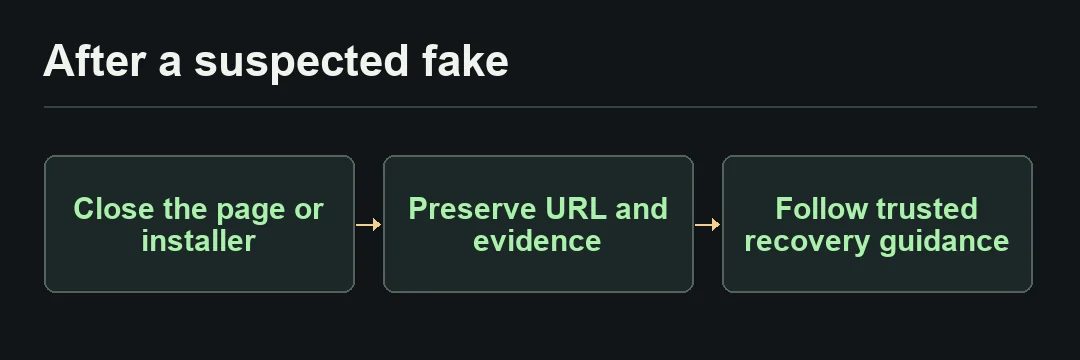
If you only downloaded a file and left it unopened, close the page and delete the suspect copy when you no longer need it as evidence. Preserve the original URL, visible filename and time if reporting an impersonation. Avoid forwarding the file or entering login information on the alleged download site. If the drive is used by an organization, consult its device procedures before deleting incident evidence.
If you ran an unexpected program or see concerning symptoms, use trusted operating-system security guidance. Microsoft provides instructions for security scanning and malware removal. An organization-managed system may have an incident response contact. Use the contact method you already know, outside any message displayed by the suspect program. When you suspect an active compromise, disconnecting the device from the network can limit further communication while you obtain help. Keep security software enabled.
If you entered a password or payment information, use a known clean device to reach the relevant service’s real website. Follow that provider’s account recovery steps, review signed-in sessions and update credentials where appropriate. If payment details are involved, contact the issuer through the contact information from your card or account. Follow the FTC’s published reporting guidance for phishing. Details such as the original page address can make a report more actionable without transferring any executable content.
Verify a reported change independently
An impersonation can use a recently published tag name and accurately quote the real release notes. Start from the maintainer’s repository address saved from an earlier visit. If your search result redirects to a different domain before offering the archive, use the known repository path and check whether the same filename appears there. A short URL or a video description can be useful for getting to a page, but it gives no enduring reference to the bytes. Save the exact official release link in your verification notes so you can revisit the original source without searching for the filename again.
Keep your evidence usable
A useful safety report identifies the project being impersonated, the specific claim on the page and the URL where you saw it. Include the date and platform listed. You can share a screenshot with sensitive account and payment information redacted. For an upstream project, use its stated reporting channel. For an issue on this website, use the editorial contact. Leave game data, suspicious executables and personal account information out of the report.
Use the GTA VI release tracker when checking for an official Windows announcement, and use download safety for a short version of the provenance checks. The release pages cover legitimate technical artifacts with a reproducible verification path. They give no reason to trust a reupload making broader claims.
Common questions
What if the site links the correct GitHub repo and also hosts its own ZIP?
Use the repository’s release page directly. Check that the file you are evaluating appears under the official release tag and match its digest to the original publisher’s value.
Does a checksum detect malware by itself?
It identifies the bytes you downloaded. Establish that the digest is from a trusted publisher and that the release is the expected piece of software.
Is a screenshot enough to report a fake installer?
Include the source URL, date, exact claim and filename. Redact account and payment information from screenshots. Report to the relevant service or project through a known official channel without sending the executable.